1. Cloud Management
1.1. Overview
The cloudadmin (usually multiple people) control the AWS-side of the infrastructure. This guide covers some of ongoing management. Your AWS cloud infrastructure must have already been initialized using Cloud Installation and that your time-limited credentials are current as described in Get Your AWS Credentials
Common Administrative Tasks
On board a new server
Creating System Owner Notifications
Setting Quotas and Alarms
Updating Dashboards that have per-bucket components
Interpreting Dashboards and Storage Lens
Digging into a few AWS Console capabilities
Emptying and Deleting a backup bucket
1.2. On-board a new server
On-boarding a new server is wrapped into a single administrative script create-bucket-with-inventory.sh. This script requires two arguments: id of owner, name of system. This wrapper performs a number of operations:
Creates a backup bucket
Creates an inventory bucket
Creates a service account for the server
Creates access policies
Applies access policy to both buckets
Applies lifecycle and inventory policy to backup bucket
Prints out access key and secret access key for service account (must securely transfer to sysadmin)
Example
Suppose the owner panteater has the system labstorage, the cloudadmin would do the following:
cd $RCS3_ROOT/rcs3/POC/cloudadmin
./create-bucket-with-inventory.sh panteater labstorage
The output from this script is fairly terse. Here’s the full output of on-boarding panteater’s labstorage system in UCI’s staging environment.
{
    "Location": "http://panteater-labstorage-uci-s-bkup-bucket.s3.amazonaws.com/"
}
{
    "Location": "http://panteater-labstorage-uci-s-inventory.s3.amazonaws.com/"
}
{
    "Policy": {
        "PolicyName": "panteater-labstorage-uci-bkup-policy",
        "PolicyId": "ANPASNSBJDU4S4KXJOTFF",
        "Arn": "arn:aws:iam::166566894905:policy/panteater-labstorage-uci-bkup-policy",
        "Path": "/",
        "DefaultVersionId": "v1",
        "AttachmentCount": 0,
        "PermissionsBoundaryUsageCount": 0,
        "IsAttachable": true,
        "CreateDate": "2024-03-05T19:02:30+00:00",
        "UpdateDate": "2024-03-05T19:02:30+00:00"
    }
}
{
    "User": {
        "Path": "/",
        "UserName": "panteater-labstorage-sa",
        "UserId": "AIDASNSBJDU47DKWTVVVU",
        "Arn": "arn:aws:iam::166566894905:user/panteater-labstorage-sa",
        "CreateDate": "2024-03-05T19:02:31+00:00"
    }
}
{
    "AccessKey": {
        "UserName": "panteater-labstorage-sa",
        "AccessKeyId": "A******************R",
        "Status": "Active",
        "SecretAccessKey": "G***************************y",
        "CreateDate": "2024-03-05T19:02:33+00:00"
    }
}
In the above output the sections are:
- Location:
shows the backup and inventory buckets S3 URLs. Can be more than one.
- Policy:
shows the attachment of the full policy document.
- User:
shows the name of the service account user panteater-labstorage-sa.
- AccessKey:
shows the access key and secret key for the service account user.
Note
The fields AccessKeyID and the SecretAccessKey need to be transmitted to sysadmin when they “localize” the settings for their server.
The templates directory holds the JSON files where policies are defined. For example, the file lifecycle-all.json hold the definitions for both tiering to Glacier (‘Tiered-Storage’) and retention of 90 days (‘Delayed-Delete’) policies. The file template-policy2.json has elements replaced to reflect the current system and then is applied as a permissions policy (notably, removing the service account’s ability to delete non-current (snapshot) data or it’s ability to change any bucket policy).
1.2.1. Host IP Restrictions
When config/aws-settings.yaml was localized, a set of valid IP subnets should have been declared to reflect your institution. The effect of this is that any host on these subnets that has a copy of the service account secrets can access the backup bucket. A tighter restriction is to limit specifically to the backup host IP address or its subnet.
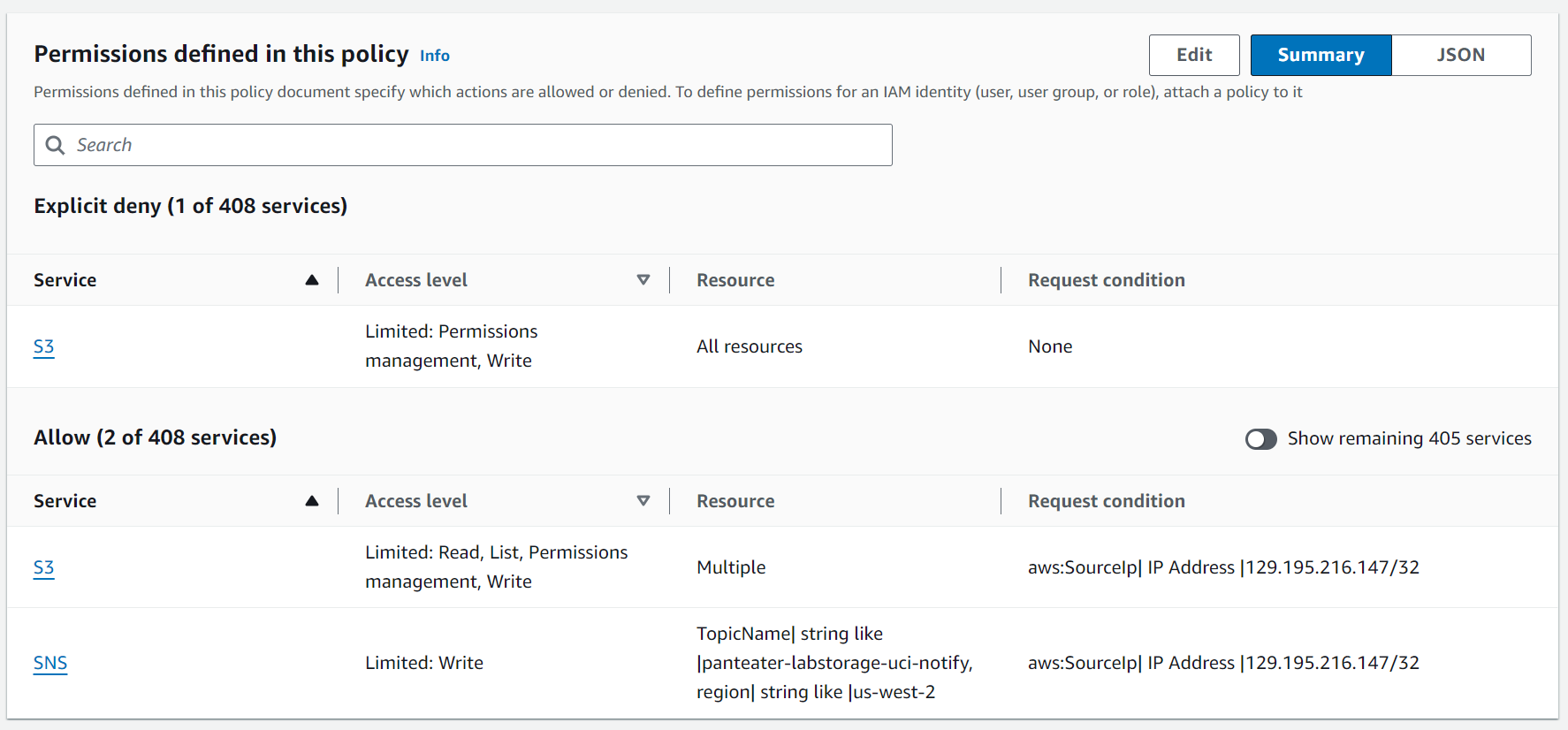
The following example uses the option -n (network) argument when creating the bucket. In this case, it limits to a single IPv4 address. Attempting to access the backup bucket using the service account from any other address will be denied.
create-bucket-with-inventory.sh -n 129.195.216.147/32 panteater labstorage
You can validate this restriction by logging on to your AWS web console, accessing the IAM service dashboard, and selecting user-defined policies. In this example, it is the policy named panteater-labstorage-uci-bkup-policy The summary view of this policy shows explicit Deny and Allow Sections. Please take note of the SourceIP| IP address restriction that has been properly set to 129.195.216.147/32 The policy also allows the service account to publish to a very particular SNS Notification Stream, if it exists.
1.3. Creating System Owner Notifications
AWS SNS (Simple Notification Service) is used to inform system owners/administrators of alarms for their bucket. Every system should have its own notification channel, but it is not a strict requirement. The script cloudadmin/create-sns-topic.py is used to create a notification list (topic). An example call looks like
RCS3 Docker /.rcs3/rcs3/POC/cloudadmin> ./create-sns-topic.py panteater labstorage -e ppapadop@uci.edu
You can supply multiple emails and/or make multiple invocations of create-sns-topic.py. The recipient of the SNS notification must confirm their subscription. They will be sent an e-mail from AWS that is similar to:

1.3.1. Using CLI to Verify Subscriptions
This section is optional, but one can view the details of subscriptions without logging on to the AWS console. Both the cloudadmin and the sysadmin can use the AWS CLI to list all available topics (permissions limit the sysadmin to only list their topic). One can also view the details of a specific topic. Here’s example output for UCI’s testing environment:
RCS3 Docker /.rcs3/rcs3/POC/cloudadmin> export AWS_PROFILE=166566894905_AWSAdministratorAccess
RCS3 Docker /.rcs3/rcs3/POC/cloudadmin> aws sns list-topics
{
    "Topics": [
        {
            "TopicArn": "arn:aws:sns:us-west-2:166566894905:aws-controltower-SecurityNotifications"
        },
        {
            "TopicArn": "arn:aws:sns:us-west-2:166566894905:panteater-labstorage-uci-notify"
        },
        {
            "TopicArn": "arn:aws:sns:us-west-2:166566894905:ppapadop-mass-uci-notify"
        },
        {
            "TopicArn": "arn:aws:sns:us-west-2:166566894905:rcic-team-notify"
        }
    ]
}
The topic that was created in the previous step has the Amazon Resource Name (ARN) of
arn:aws:sns:us-west-2:166566894905:panteater-labstorage-uci-notify. To see the details of the particular topic,
one uses the list-subscriptions-by-topic subcommand of sns:
RCS3 Docker /.rcs3/rcs3/POC/cloudadmin> aws sns list-subscriptions-by-topic --topic-arn=arn:aws:sns:us-west-2:166566894905:panteater-labstorage-uci-notify
{
    "Subscriptions": [
        {
            "SubscriptionArn": "arn:aws:sns:us-west-2:166566894905:panteater-labstorage-uci-notify:7ae82878-ae6e-4721-8c38-b03fc53eb244",
            "Owner": "166566894905",
            "Protocol": "email",
            "Endpoint": "ppapadop@uci.edu",
            "TopicArn": "arn:aws:sns:us-west-2:166566894905:panteater-labstorage-uci-notify"
        }
    ]
}
1.4. Setting Quotas and Alarms
It is highly recommended that informational quotas be set on backup buckets. This allows cloudadmins to set soft limits on total storage and number of objects (files). Setting quotas translates to creating four AWS-managed alarms: two for space and object limits and two activity alarms. Since AWS knows nothing of the details of rcs3, the activity alarms help detect over use (too many API calls) and little to no activity (too few API calls). The latter helps find backups that are not running on a regular basis.
The file templates/quotas.csv contains UCI’s current quota settings and must be copied to config/quotas.csv and edited to meet your quota specification. The CSV format is simple:
ID, System, Object Quota (Millions), Storage Quota (TB)
The # is a comment line and blank lines are
skipped. A valid quota file for setting the panteater’s lab storage system to 1M objects and 10TB is:
# This file can be processed to set quotas
# It's format is comma separated value (CSV)
# Any line that begins with a # is ignored
# ID,Systems,Object Quota (Millions), Storage Quota (TB)

ID,SYSTEM,QUOTA_OBJECT,QUOTA_STORAGE

panteater,labstorage,1,10
lopez,fedaykin,1,1
The header line must remain. To set quotas for all systems in the quotas.csv file, just issue the command
set-quotas.py as in the following example:
RCS3 Docker /.rcs3/rcs3/POC> cloudadmin/set-quotas.py
Putting Alarm:  panteater-labstorage exceeded number objects quota into cloudwatch
Putting Alarm:  panteater-labstorage excessive daily activity into cloudwatch
Putting Alarm:  panteater-labstorage exceeded storage quota into cloudwatch
Putting Alarm:  panteater-labstorage no activity into cloudwatch
Putting Alarm:  lopez-fedaykin exceeded number objects quota into cloudwatch
Putting Alarm:  lopez-fedaykin excessive daily activity into cloudwatch
Putting Alarm:  lopez-fedaykin exceeded storage quota into cloudwatch
Putting Alarm:  lopez-fedaykin no activity into cloudwatch
It will tell you that the four alarms specific to the lab storage server have been successfully uploaded into cloudwatch.
Note
set-quotas.py can limit quota setting to just an owner with the -o option.
1.5. Updating Dashboards that have per-bucket components
The systems listed on these dashboards are driven by the content
of quotas.csv. Simply issue the command cloudadmin/set-cloudwatch-composite-dashboards.py:
RCS3 Docker /.rcs3/rcs3/POC> cloudadmin/set-cloudwatch-composite-dashboards.py
Putting Dashboard:  Cost-Estimates-Bucket into cloudwatch
Putting Dashboard:  System-Alarms into cloudwatch
The next screenshot shows the cost estimates dashboard by bucket. In this case we have numerous buckets, and their names have been blurred. Each line shows storage utilization, number of objects, cost, data held in snapshots, and percentage overhead of snapshots. One can customize the timeframe (4 weeks is the default).

RCS3 Docker /.rcs3/rcs3/POC> cloudadmin/set-cloudwatch-composite-dashboards.py
Putting Dashboard:  Cost-Estimates-Bucket into cloudwatch
Putting Dashboard:  System-Alarms into cloudwatch
1.6. Interpreting Dashboards and Storage Lens
The custom Cloudwatch dashboards Cost-Estimates, Cost-Estimates-Bucket and System-Alarms contain some useful summary information about the state of items and are available from the Cloudwatch service tab in your AWS console.

- Cost-Estimates
provides the account-level view of storage.
It categorizes storage bytes used into Standard (S3 Standard) and Archive (Sum of Glacier and Deep Archive).
It counts objects (files) so that mean file size can be easily derived (Total Bytes/Number Objects).
It estimates cost by applying discounts (geared toward our contract with AWS). All discounts can be removed to see an approximation of total cost.
The final two sparkline charts are Snapshot Bytes (how many bytes are in non-current objects or deleted objects that have not yet been permanently deleted) and Snapshot overhead (as percentage of total storage). Mean figures are provided for some of these metrics.
The two lower line charts break out some detail of cost of API calls and the components of storage.
If the integrated view of Archive storage is not enough, you can mouse over any point in your range to see more details:
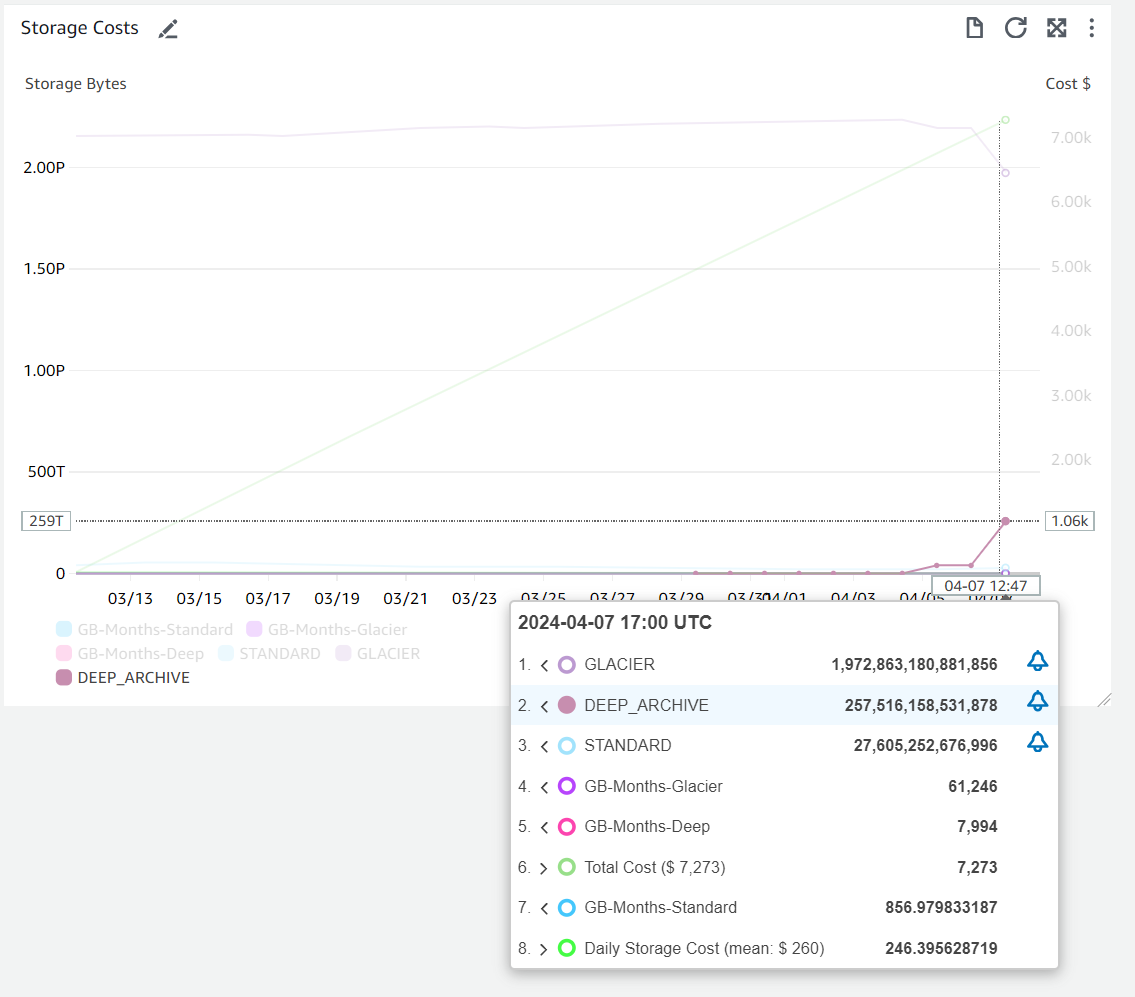
In the above example, on April 07,
1.97 PiB were in Glacier
257.5 TiB in Deep Archive
27.6 TiB in S3 standard.
GB-Months for each storage level is also reported to better reflect what a user would see when looking at AWS’ Cost Explorer widget.
Note
Baseline metrics are reported in Bytes, but AWS bills in GB (1024 3 bytes). The sparkline storage measurements are converted. For example, 27.6TiB is reflected as 25.7TB in the sparkline summary and should read as 25,700 GB. It’s posted this way to reflect the rates posted by AWS.
- Cost-Estimates-Bucket
provides the same sparkline graphs, but on a per-bucket basis. You MUST regenerate this dashboard each time you add a new server and have set a quota for the server.
- System-Alarms
shows the alarm limits and states for each bucket the next two figures compare expected or normal operation and unexpected activity:

In the above figure the rightmost graphs show a periodic (weekly) spike in activity. The spike occurs when rclone performs a deep sync of the contents on the server with backup in the cloud. If the Bucket Activity peak is in the rangeof 1x - 2x the number of objects (seen in the object quota), then the inference is that rclone is properly comparing the metadata of all files.

This shows an activity gap (highlighted in yellow) where the tell-tale bump in activity was not present. On this server, daily “top up” backups were active but there was an error in defining the “weekly sync”. The responsible system administrator corrected the issue.
By adjusting the timeframe of the dashboard, you can see how a particular server has evolved over time.
1.7. Emptying and Deleting a backup bucket
Before you can delete an AWS bucket, you must completely empty if first. If the number of objects is small (say less than 1M) and you don’t have objects archived in Glacier or Deep Glacier or subject to Object Locks, then you can manually delete all objects in a bucket fairly quickly.
- Manually
This script requests all objects in a specific bucket and deletes them. It processes the list in batches (check the boto3 list_object_versions for the default batch size). This can cause errors in the boto3 delete_objects command, so you may need to decrease the batch size if you see errors.
cd $RCS3_ROOT/rcs3/POC/cloudadmin
./delete-all-bucket-objects.py panteater-labstorage-uci-s-bkup-bucket
- Lifecycle-Policy
In a more complex situation, you can use a lifecycle policy which will delete objects over time. You’ll have to check periodically, a day or a week or a month later depending on your situation, to verify that all objects have been removed.
cd $RCS3_ROOT/rcs3/POC/cloudadmin
./remove-lifecycle-inventory-from-bucket.py panteater-labstorage-uci-s-bkup-bucket
aws s3api put-bucket-lifecycle-configuration --bucket panteater-labstorage-uci-s-bkup-bucket --lifecycle-configuration file://../templates/lifecycle/lifecycle-delete-all-objects.json
Delete-Bucket
Once all objects have been removed, you can now delete the bucket and associated service account and policies.
cd $RCS3_ROOT/rcs3/POC/cloudadmin
./delete-bucket-and-user.py panteater labstorage
Again, this can be highly dependent on your environment and how you’ve modified your buckets.